Getting Started
Install
Run the full installer MIB_Studio_Qt_Setup_v<version>.exe (from the
GitHub Releases page or your team's distribution channel). It installs the
application, the required runtimes, and — when crash reporting is
configured — the crash handler.
Updates
The app checks for updates quietly on launch and only prompts when a new version is available. Updates download as a small update package, are checksum-verified, and install elevated.
- Help ▸ Software Updates… opens the update dialog: pick a channel (stable or beta) and any published version from the list — including older ones, so you can roll back (downgrades ask for confirmation).
- The default channel matches the build you are running (a beta build defaults to the beta channel); once you pick a channel explicitly, that choice sticks.
- If updates are disabled at boot (see Boot Service Toggles below), the Software Updates menu entry is greyed out.
The main window
The window is a fixed set of task tabs plus a collapsible sidebar:
- Connect — pick the camera (first tab on startup). See Connect a camera.
- Overview — raw live view with ROI drawing.
- Experiment — nested Preview and Monitoring pages, with Start/Stop Experiment buttons in the tab-bar corner.
- Review — open and inspect recorded HDF5 files.
- Start Live View / Stop Camera buttons sit in the corner of the main tab bar and control frame acquisition regardless of the current tab.
- Hardware panel (left sidebar) — background image preview, capture
statistics, nanopositioner controls, and syringe pump controls. Hide or
show it with the ◀ / ▶ button in the left corner of the tab bar,
Settings ▸ Hide/Show hardware panel, or
Ctrl+Shift+H; hiding it never moves or resizes the window, and dragging the divider sets the width the panel reopens with (clamped so the workspace always keeps its minimum width on a smaller screen).
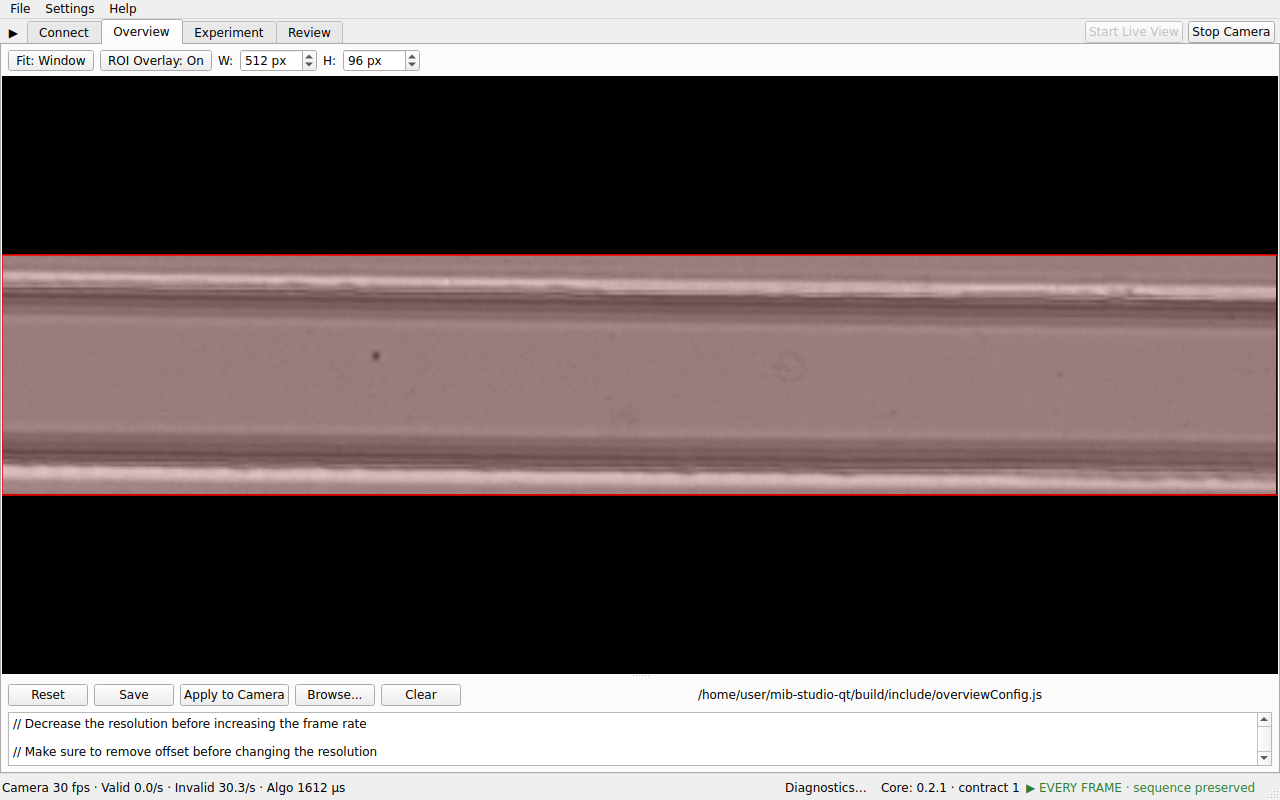
The window remembers its size and position between sessions and validates them against the current desktop on startup: after moving to a smaller monitor or a different scaling factor it shrinks or moves back on-screen instead of leaving the title bar or controls unreachable. Long paths, profile names and status values are shortened with an ellipsis (hover for the full text; right-click to copy) rather than widening the window. - Status bar — live capture/processing statistics (see Acquire & record) and the current ROI.
Menus
- File — Open Data Folder (
Documents\MIB_Studio_Qt), Open Logs Folder, Exit. - Settings — Processing, Monitoring, Pixel-to-Micron, Syringe Pump settings dialogs; Boot Service Toggles… (disable selected services on next launch, e.g. auto-update); Profiles… (jumps to the config/profiles editor on Experiment ▸ Preview).
- Help — About, Software Updates…, Documentation (opens the project page), Report a Problem (opens the issue tracker).
Where your data lives
| What | Where |
|---|---|
| Experiment recordings (HDF5) | The path you choose in the Save dialog when starting an experiment |
| Default data folder | Documents\MIB_Studio_Qt (File ▸ Open Data Folder) |
| Application logs | %LOCALAPPDATA%\MIB_Studio_Qt\logs (File ▸ Open Logs Folder) |
| Crash reports | %LOCALAPPDATA%\MIB_Studio_Qt\crashes |
Offline help and release notes
Use Help ▸ What's New to read the running release's notes followed by earlier releases. Help ▸ User Manual opens this guide and its images offline; use Index to return to the contents or Open online documentation for the web edition. After an upgrade, Qt shows What's New once; a fresh installation stays quiet. Help ▸ Software Updates… displays the selected version's notes when included in the update catalog. The Release Notes button opens the release page when online access is available.